The Right IT Model Depends on What Your Team Can Realistically Own
If one IT employee taking vacation leaves your company without a clear escalation path, the problem may not be the employee. It may be the support model.
The co-managed IT vs managed IT decision is really about ownership. Who handles employee support, servers, cybersecurity, monitoring, patching, vendor coordination, projects, documentation, strategic planning, and after-hours issues? A business with no internal IT staff needs a different operating model from a company with an experienced technology department that simply needs additional capacity or specialist support.
For Louisiana organizations evaluating those options, LAComputech currently offers managed IT services that include server management, virtual technical support, remote monitoring, onsite and remote assistance, and technology planning. Its Managed IT page also specifically states that LAComputech can provide IT staff to augment professionals already working inside a business, making the distinction between full outsourcing and supplemental support especially relevant.
What Is Fully Managed IT?
With fully managed IT services, an outside managed service provider becomes the primary operational IT resource for the organization.
The provider may take responsibility for an agreed combination of:
The exact scope depends on the contract. Managed IT should not be assumed to include every cybersecurity, cloud, hardware, or consulting service automatically.
LAComputech's current Managed IT Services page describes server management, virtual technical support, performance enhancements, remote monitoring, and onsite and remote support.
Fully managed IT generally makes the most sense when a business has no dedicated IT department or does not want internal employees responsible for routine technology operations.
What Are Co-Managed IT Services?
Co-managed IT services divide responsibilities between an internal IT team and an outside provider.
The internal team stays involved. The provider supplements its capacity, coverage, tools, or specialized knowledge.
This is sometimes described as IT staff augmentation, but effective co-management should be more structured than simply adding another technician. Each side needs documented responsibilities, access levels, escalation paths, reporting expectations, and decision authority.
That distinction matters from a cybersecurity perspective as well. NIST Cybersecurity Framework 2.0 emphasizes establishing, communicating, and understanding cybersecurity roles and responsibilities. NIST Cybersecurity Framework 2.0 specifically treats governance and accountability as part of managing cybersecurity risk.
CISA provides similar guidance for businesses working with MSPs, recommending that contracts clearly define which responsibilities belong to the provider and which remain with the customer. CISA's MSP security guidance also stresses understanding an MSP's access and establishing clear incident-response responsibilities.
Co-Managed IT vs Managed IT Responsibility Matrix
There is no universal division of responsibilities. The following matrix shows common starting points.
Working Email Does Not Prove Your Security Settings Are Working
Paying for Microsoft 365 security features is not the same as having them properly configured. A Microsoft 365 security audit checklist should help owners and IT leaders verify access, email defenses, sharing, devices, and investigation records, then assign responsibility for fixing gaps.
For Louisiana businesses, LAComputech connects Microsoft cloud security with broader technology management. This framework helps you organize a Microsoft 365 security assessment around your actual subscriptions, sensitive information, and operating needs, rather than applying settings that could interrupt employees or customer communication.
1. Establish Scope, Licensing, and Evidence
Record your Microsoft 365 tenant, subscriptions, assigned licenses, domains, administrator accounts, devices, and business-critical applications. Identify who approves changes and where evidence will be stored securely.
Use Microsoft’s Microsoft 365 security best practices as a starting point. Business Basic and Standard include baseline protections; Business Premium adds capabilities including Microsoft Entra ID P1, Intune Plan 1, and Defender for Business. Additional features can require separate licensing.
Your Microsoft 365 security checklist should identify whether each control is configured, missing, unavailable under current licensing, or awaiting verification. A purchased license does not establish that a policy is enabled or covers every intended user.
2. Verify Identity, MFA, and Administrator Access
Start with the accounts that can reach business information:
-
Match enabled accounts to current employees and approved service purposes. Investigate former employees and unnecessary privileges.
-
Check multifactor authentication registration, policy coverage, and representative sign-in evidence. Registration alone does not prove enforcement.
-
Review Global Administrator assignments, provider access, and separate administrative accounts. Apply the minimum permissions needed and maintain protected emergency access.
Connect these checks to employee onboarding and offboarding so access reviews continue after the assessment.
Conditional Access generally requires Microsoft Entra ID P1; certain risk-based capabilities require P2. Security defaults provide baseline protections without P1. They are alternative approaches, not settings to stack indiscriminately.
Follow Microsoft’s Conditional Access deployment guidance: test policies with a pilot group and report-only mode where available, review exclusions, and validate emergency access before enforcement. Plan any move from security defaults without leaving a protection gap.
3. Examine Email Protection and External Sharing
Review anti-phishing, anti-spam, and anti-malware policies, recipient coverage, exceptions, and reporting procedures. Inspect automatic external forwarding and unexpected mailbox rules. Check SPF, DKIM, and DMARC, which help authenticate sending domains. Identify legitimate sending systems before tightening policies.
Then review SharePoint, OneDrive, and Teams collaboration. Check organization and site-level sharing limits, guest access, and anonymous “Anyone” links. A guest account review alone does not address anonymous links. Ask document owners which external access is still necessary before removing it.
If these responsibilities are unclear, discuss a Microsoft 365 security assessment with LAComputech. Its business cybersecurity services include Microsoft cloud security; agree on the systems, licensing review, and remediation responsibilities before work begins.
4. Check Devices and Usable Audit Records
Inventory the computers and mobile devices accessing company information. Review update status, endpoint protection, encryption, and lost-device procedures. Confirm that enrollment or compliance policies actually cover the intended devices. Use Intune or other appropriate controls according to licensing and business requirements.
An Office 365 security audit also needs evidence that activity can be investigated. Follow Microsoft’s audit verification guidance rather than assuming logging is active. Its current documentation specifically warns that auditing is not enabled by default for Business Basic, Standard, and Premium subscriptions.
Have an authorized administrator verify auditing, search for a known recent activity, and document who reviews alerts. Microsoft Entra sign-in logs and Microsoft Purview audit records have different retention rules. Check both against investigation needs and arrange appropriate retention before records expire.
5. Use Microsoft Secure Score as a Guide, Not a Certificate
A Microsoft Secure Score audit can reveal recommended improvements and track progress. However, Microsoft Secure Score is not a breach-probability calculation, a compliance certificate, or a guarantee of protection.
Evaluate recommendations against your risks, licenses, alternative safeguards, and employee workflows. Prioritize meaningful exposure reduction rather than purchasing features or disrupting operations simply to increase a number.
6. Turn the Checklist Into a Remediation Plan
Use this Microsoft 365 security audit checklist worksheet to connect technical findings with business decisions. These are example findings, not an assessment of your organization.
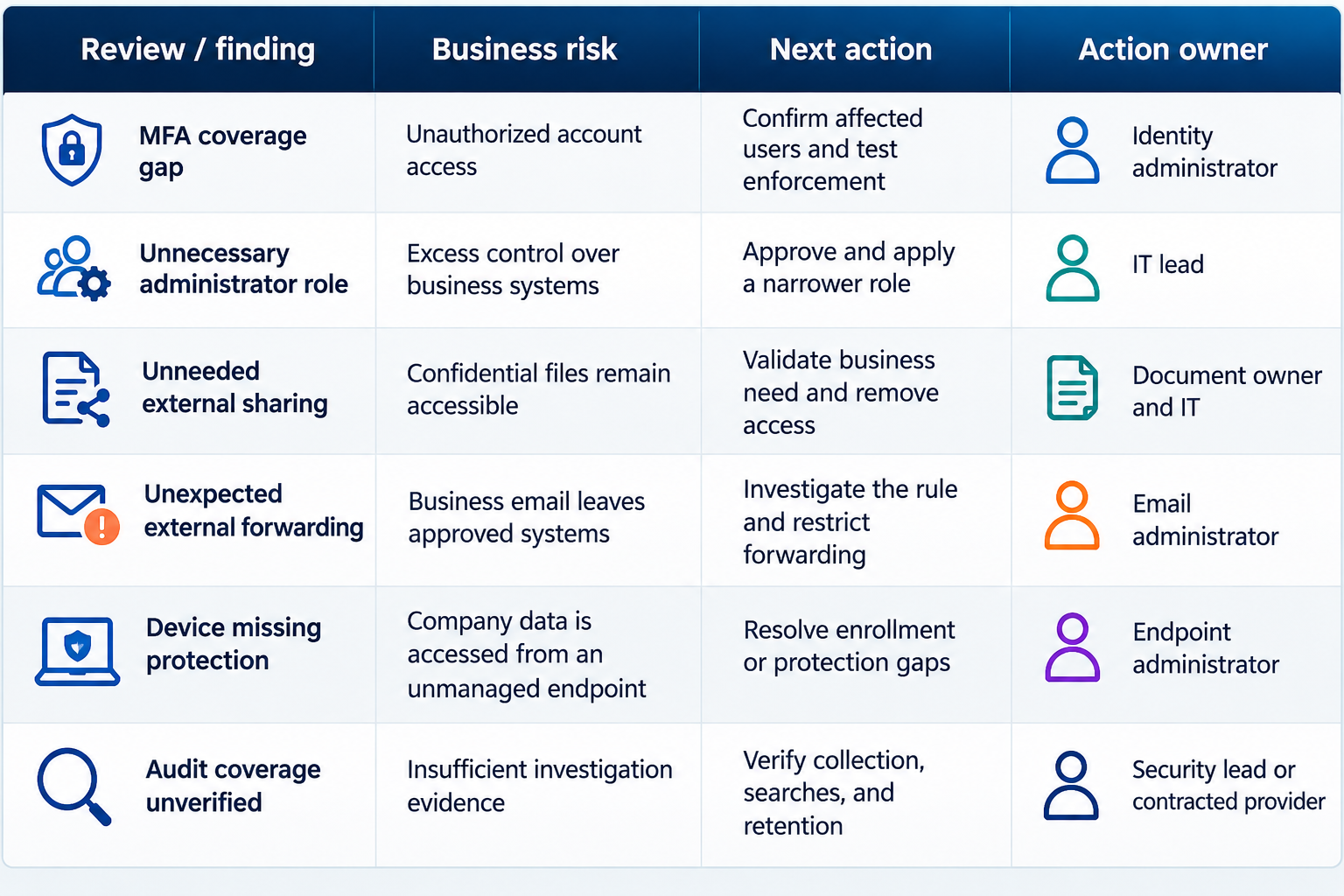
For each finding, add the evidence date, affected users, priority, due date, change approval, and closure evidence. Assign one accountable owner even when several people help. Escalate suspected compromise immediately rather than waiting for the next review.
Louisiana Business Example
A professional-services firm discovers that a former contractor retains guest access and a client folder has an anonymous link. Instead of disabling all external collaboration, the document owner confirms legitimate users while IT removes obsolete access and tests the replacement sharing method. The finding stays open until permissions are verified.
7. Keep Microsoft 365 Security Best Practices Current
Consider monthly checks of high-risk settings and a broader quarterly review, adjusted to your organization. Reassess after employee departures, provider changes, new applications, or licensing changes.
LAComputech’s managed IT services can supplement internal staff and ongoing technology management. Specify who monitors changes, maintains evidence, and reports unresolved risks; do not assume every contract includes every security task.
Turn Security Findings Into Accountable Improvements
A Microsoft 365 security audit checklist is useful only when findings lead to verified action. Start with access and exposure, then address licensing gaps, investigation readiness, and ongoing ownership.
Call LAComputech at (855) 252-8324 to discuss your Microsoft 365 environment and request a technology consultation focused on security priorities and the support needed to address them.
FAQs
What should a Microsoft 365 security audit checklist cover?
A Microsoft 365 security checklist should cover licenses, identities, MFA, administrator roles, guests, email, sharing, devices, logs, Secure Score, and a remediation plan with accountable owners.
Does Conditional Access require Business Premium?
No. It requires appropriate Microsoft Entra licensing, commonly P1, which Business Premium includes. Other subscriptions or add-ons can provide it. Some risk-based capabilities require P2.
Is an Office 365 security audit just a Secure Score review?
No. A Microsoft Secure Score audit is one input. A broader review checks actual access, configuration, evidence, business impact, and responsibilities beyond the score.
How often should SMBs review Microsoft 365 security?
Use risk-based scheduling. Monthly high-risk checks and quarterly broader reviews are practical starting points, with additional reviews after significant changes. These are recommendations, not universal compliance deadlines.
For example, LAComputech separately promotes 24/7 Helpdesk and technical support. Businesses should still confirm exactly which users, systems, hours, and escalation scenarios are included in their particular agreement rather than assuming every managed plan has identical coverage.
If your internal IT team is spending most of its time clearing tickets, monitoring routine issues, and reacting to maintenance instead of working on business priorities, LAComputech can help evaluate which responsibilities should remain internal and which could be supplemented through managed IT support.
Scenario 1: Your Business Has No Internal IT Staff
For a company without dedicated technology personnel, fully managed IT is usually the simpler managed IT support model.
An office manager or executive should not become the default network administrator merely because nobody else owns IT.
A provider can become the primary operational resource while leadership retains control over business priorities, budgets, risk tolerance, and major purchasing decisions.
The important distinction is that outsourcing IT does not outsource executive accountability. Management should still know:
-
Who owns major systems and accounts
-
How incidents are escalated
-
What services are included
-
How changes are approved
-
Where documentation is stored
-
How performance is reviewed
Scenario 2: One IT Administrator Is Overloaded
This is often where co-managed IT vs managed IT becomes a more meaningful question.
One experienced administrator may understand the business extremely well but still lack the time to simultaneously handle tickets, server maintenance, security reviews, backups, projects, vendors, employee onboarding, and after-hours issues.
Co-management can allow that person to remain the internal technology owner while an external team handles agreed responsibilities.
A hypothetical Louisiana company might keep its administrator responsible for business applications and internal projects while using outside support for helpdesk escalation, remote monitoring, infrastructure work, or scheduled maintenance.
LAComputech also offers IT Security Services covering areas such as virtual technical support, backups and recovery, and operating-system security upgrades and patches. Any division between those services and internal staff should be documented in the agreement.
Scenario 3: A Mature IT Department Needs Specialist Coverage
A larger internal IT department may not need a provider to run everyday operations.
Instead, the business may need outside expertise for:
This is where IT staff augmentation can preserve internal ownership while adding resources only where they create value.
LAComputech's Managed IT page specifically notes that it can augment existing IT professionals rather than requiring businesses to replace them.
Clear Ownership Matters More Than the Label
The biggest weakness in poorly designed managed IT support models is ambiguity.
Consider patching. If the internal administrator believes the provider is patching a server while the provider believes that server is excluded from scope, the technology is unmanaged regardless of what the contract calls itself.
The same issue applies to:
-
Backups
-
Firewall changes
-
Administrator accounts
-
Monitoring alerts
-
Employee onboarding
-
Security incidents
-
Vendor renewals
-
Documentation
-
Weekend emergencies
CISA's guidance for MSP customers recommends defining expected provider privilege levels, reviewing connections between the MSP and internal systems, and limiting access to what is necessary. CISA's Risk Considerations for Managed Service Provider Customers provides a useful reference when documenting these boundaries.
Microsoft applies the same least-privilege principle to Microsoft 365 administration. Its current Microsoft 365 administrator role guidance recommends assigning administrators only the permissions needed for their responsibilities and limiting highly privileged Global Administrator accounts.
Questions to Ask Before Choosing a Support Model
Use these questions when comparing outsourced IT vs internal IT or a hybrid arrangement:
-
Who handles everyday employee support?
-
Who owns servers, networks, cloud environments, and backups?
-
Who monitors systems after normal business hours?
-
Who approves and deploys patches?
-
Who owns cybersecurity policies versus technical controls?
-
Who handles Microsoft 365 and privileged accounts?
-
Who coordinates third-party technology vendors?
-
Who maintains documentation?
-
What problems stay with internal IT?
-
What problems automatically escalate to the provider?
-
Who leads major projects?
-
What reports does management receive?
-
What happens when the primary internal administrator is unavailable?
If any answer is "we thought the other team handled that," the model needs clearer ownership.
Choose the Model That Solves the Staffing Problem
The co-managed IT vs managed IT choice should follow the organization's actual staffing, workload, risk, and technical needs.
Businesses without IT staff may benefit from fully managed IT services that centralize everyday technology responsibility. Organizations with capable but overloaded staff may benefit from co-managed IT services that provide additional coverage without removing internal control. Mature IT departments may use outside specialists selectively for projects, infrastructure, or coverage gaps.
LAComputech's current services include managed IT, remote monitoring, virtual technical support, server management, infrastructure consulting, IT security, and staff augmentation for organizations that already have internal professionals.
Call LAComputech at (855) 252-8324 to discuss your current IT team, support workload, escalation needs, and whether a fully managed or co-managed approach makes operational sense for your organization. The phone number is confirmed on LAComputech's current Contact page.
FAQs
What is the difference between co-managed IT and fully managed IT?
Fully managed IT places most contracted day-to-day technology responsibilities with an external provider. Co-managed IT divides those responsibilities between internal IT staff and an outside provider according to a documented scope.
Is co-managed IT the same as IT staff augmentation?
They overlap, but they are not always identical. IT staff augmentation can simply add technical capacity. Co-managed IT generally works best when responsibilities, systems, escalation procedures, access, and reporting are formally divided between internal and external teams.
When do co-managed IT services make sense?
They can make sense when a business already has capable internal IT staff but needs additional help with support volume, monitoring, projects, specialist expertise, infrastructure, maintenance, or coverage outside the internal team's capacity.
Can an MSP work alongside an internal IT department?
Yes. LAComputech's current Managed IT page specifically states that it can provide IT staff to augment technology professionals already in place. The exact duties should be defined in the service agreement.