Choose Office Equipment Around the Work Your Team Actually Does
Buying office printing equipment based on price or a familiar model name can leave a business with too little capacity, unnecessary features, or several devices doing work that one machine could handle. The practical copier vs printer decision starts with document volume, workflows, paper requirements, security, staffing, and expected growth rather than the label on the machine.
For Louisiana organizations evaluating office technology, LAComputech provides managed print services and hardware solutions that can help businesses assess how equipment fits their actual operating environment. Its current offerings include multifunction printer leasing as well as managed print services built around fleet assessment, optimization, monitoring, supplies, maintenance, and document security.
Copier vs Printer: What Is the Practical Difference?
The terminology has become less clear because modern devices frequently overlap.
A traditional office printer is primarily designed to receive digital files from computers or other devices and put them on paper. Business printers range from compact desktop units to fast workgroup systems. Some are print-only, while others add additional functions.
A traditional copier is centered on reproducing physical documents. Larger office copiers generally offer stronger paper capacity, document feeders, sorting, finishing, and workgroup capabilities than a small desktop printer.
The biggest change is the multifunction printer, or MFP. A business multifunction printer combines printing with copying and scanning, and some models also provide faxing, email, workflow, or document-routing features. Xerox defines an MFP as equipment that consolidates printer, copier, scanner, and potentially fax functionality into one machine. HP's current business portfolio similarly separates print-only devices from MFPs that print, scan, copy, and sometimes fax.
That is why the modern difference between copier and printer is less about whether one can copy and more about workload, configuration, paper handling, workflow capabilities, and intended users.
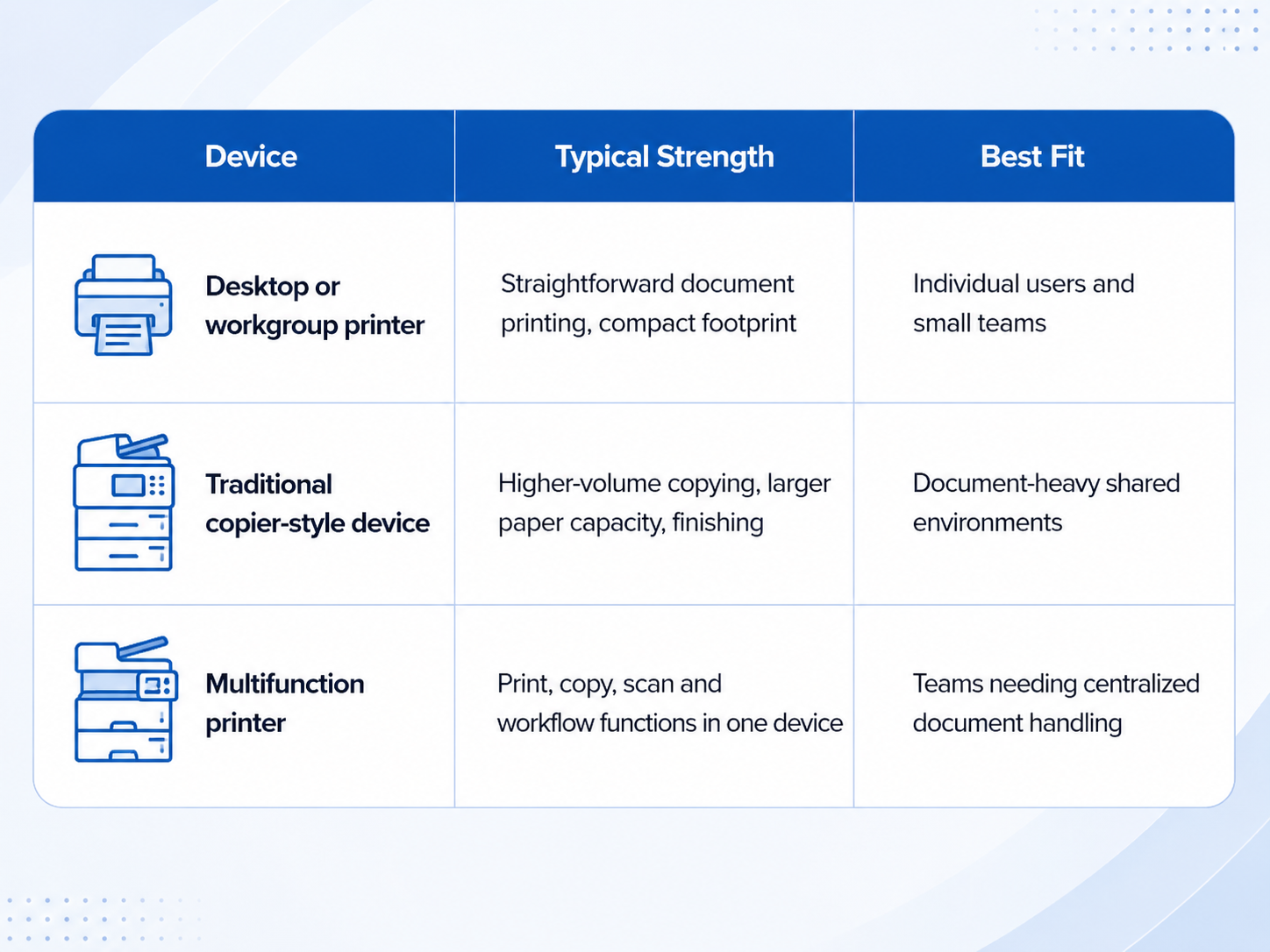
Copier vs Multifunction Printer: Look Beyond Copying
A copier vs multifunction printer comparison should focus on what employees need to accomplish after a page enters or leaves the machine.
A modern MFP may allow staff to scan multi-page documents, create searchable digital files, send scans to approved destinations, print securely, and handle several paper sizes from one shared device. Floor-standing systems can also support features such as stapling, sorting, additional paper trays, and higher-capacity document feeders, depending on the model and configuration.
A smaller printer may make more operational sense when employees mostly print ordinary letter-size documents and rarely scan or copy.
Before buying, document which functions are actually required:
-
Printing in color, monochrome, or both
-
Duplex printing
-
Copying
-
Single or double-sided scanning
-
Automatic document feeding
-
Multiple paper sizes
-
Envelopes or specialty media
-
Sorting, stapling, or other finishing
-
Secure user authentication
-
Scan-to-email, folder, or approved workflow
-
Mobile or network printing
LAComputech's hardware and software solutions currently include multifunction printer leasing alongside desktop, laptop, networking, firewall, and other business technology offerings.
Start With Monthly Print and Scan Volume
When comparing copier vs printer options, one of the most important questions is how much work the device must handle.
Review meter readings, supply orders, or print-management reports for several representative months. Separate black-and-white from color output when possible. Then consider seasonal peaks and expected hiring or location growth.
For example, an office averaging 1,500 pages per month has a very different requirement from a school department producing thousands of instructional documents during registration and testing periods.
Do not choose a device simply because its advertised maximum monthly duty cycle exceeds current usage. Compare the manufacturer's recommended workload, paper capacity, service requirements, consumables, and performance under the organization's typical workload.
ENERGY STAR also recommends choosing imaging equipment around actual requirements and projected growth rather than purchasing equipment that is unnecessarily large or unable to handle the workload. Its imaging-equipment guidance covers printers, copiers, and multifunction devices. Review ENERGY STAR imaging equipment guidance.
If your organization is unsure whether existing printers are overloaded, underused, or unnecessarily duplicated, LAComputech can assess the fleet and identify where a desktop printer, shared MFP, relocation, consolidation, or another configuration better matches actual usage.
Compare Speed, Paper Handling and Employee Workflow
The fastest machine is not automatically the best machine.
A 40-page document may print quickly, but productivity can still suffer if employees repeatedly refill small trays, manually scan two-sided originals, wait for another department's device, or walk across a building for every copy.
Evaluate:
Paper Handling
Consider standard tray capacity, additional trays, paper sizes, automatic duplexing, document feeders, and the types of media employees regularly use.
Scanning
A clinic, legal practice, school, or administrative office that digitizes large document sets may benefit more from fast duplex scanning and an automatic document feeder than from a slightly higher print speed.
Finishing
Organizations producing packets, reports, training materials, or instructional documents may need stapling, sorting, or other finishing capabilities. Others may never use them.
Footprint
An office copier for small business may offer substantial capacity, but a floor-standing machine consumes more space than a desktop or compact workgroup device. The physical layout and employee traffic around the equipment matter.
Do Not Ignore Printer and MFP Security
Printers, copiers, and MFPs should be evaluated as part of the technology environment, particularly when they are connected to business networks or process sensitive documents.
NIST's guidance on replication devices covers printers, scanners, copiers, and multifunction devices and recommends managing risks to information processed, stored, or transmitted through them. Review NIST replication-device security guidance.
Depending on business needs and device capabilities, decision-makers may want to evaluate:
LAComputech's Office Printer Maintenance Checklist also recommends reviewing firmware, administrator access, secure-print settings, workload, repair history, and manufacturer support as part of lifecycle planning.
Which Device Fits Different Business Environments?
The right MFP vs printer choice changes with the work being performed.
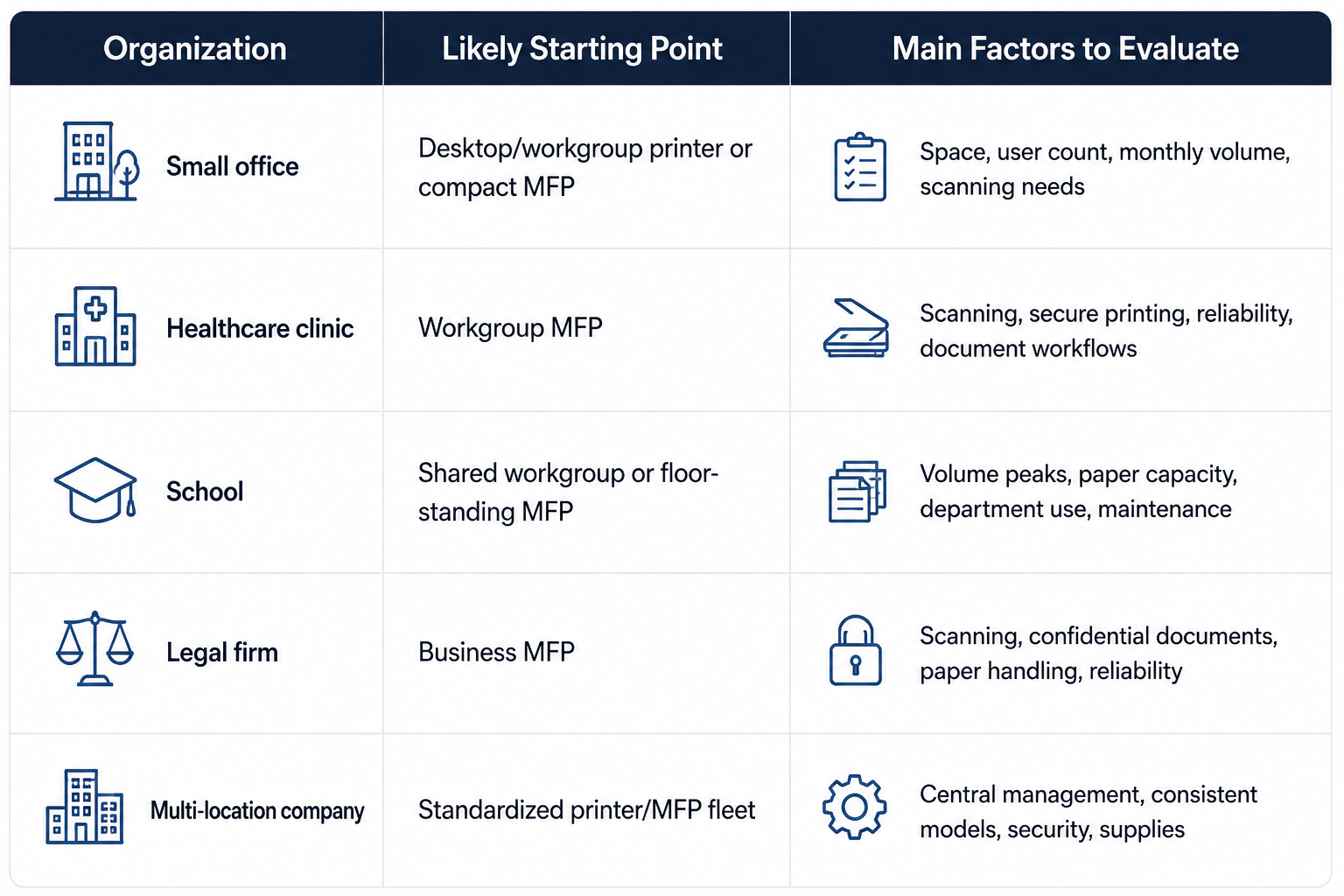
These are starting points, not universal purchasing rules.
For example, a hypothetical 15-person Louisiana accounting office that prints routine correspondence but scans client files throughout the day may get greater value from one properly sized MFP plus a small departmental printer than from placing several inexpensive printers around the office.
By contrast, a small sales office with low print volume and almost no paper-based intake may not need a full-size copier at all.
Calculate Total Operating Cost, Not Just Purchase Price
The difference between copier and printer costs extends beyond the hardware price.
Evaluate:
Total monthly cost = equipment + supplies + service + energy + internal support + avoidable downtime
Also consider:
-
Toner or ink yield
-
Maintenance components
-
Paper consumption
-
Service requirements
-
Number of separate devices being supported
-
Software or print-management costs
-
Employee time spent troubleshooting
-
Expected replacement requirements
Do not assume an MFP automatically costs less because it replaces several machines. Likewise, several inexpensive printers are not necessarily cheaper if they create extra supply inventories, maintenance requirements, and IT support work.
LAComputech's managed print services begin with assessing equipment, usage patterns, and spending, then right-sizing and managing the environment. The service page specifically notes that optimization may involve replacing high-cost desktop printers with multifunction devices or repositioning equipment according to workflow.
Make the Device Match Your Next Few Years, Not Just Today
A copier vs multifunction printer decision should also account for reasonable growth.
Ask:
-
Will staffing increase?
-
Could additional departments share the device?
-
Is scanning becoming more important?
-
Will more confidential information pass through the equipment?
-
Are several old printers likely to be retired?
-
Does the organization need consistent devices across locations?
LAComputech's guide to printer fleet standardization explains how mixed fleets can complicate supplies, drivers, support, user workflows, and security.
Choose Office Technology Around the Workflow
The best device is not automatically the largest copier or the least expensive printer. It is the equipment that reliably supports the organization's volume, paper handling, scanning, security, available space, employee workflows, and future plans.
For some companies, that means a compact printer. For others, the right answer is a shared business multifunction printer or a carefully standardized fleet of MFPs and departmental printers.
LAComputech helps Louisiana organizations evaluate office printing environments, equipment requirements, fleet utilization, maintenance, and managed print options around actual business needs. Call LAComputech at (855) 252-8324 to discuss your current printer fleet and determine what equipment configuration makes sense for your organization. The number is confirmed on the current LAComputech Contact page.
FAQs
What is the main difference between a copier and a printer?
A printer primarily produces documents from digital files, while a traditional copier is designed around reproducing physical documents. Today, many office copiers are multifunction devices that also print, scan, and handle digital workflows, so workload and features are often more useful comparison points than the name alone.
Is an MFP better than a regular printer?
Not automatically. In an MFP vs printer comparison, an MFP is useful when employees regularly need printing, copying, scanning, and shared workflows. A print-only device may be more practical for a user or department with simple, lower-volume requirements.
What should I look for in an office copier for small business use?
Evaluate monthly volume, employee count, print speed, scan requirements, document feeder capacity, paper sizes, color requirements, security controls, available space, maintenance, supplies, and total operating cost.
How do I know whether my business needs a copier, printer, or MFP?
Start by measuring print and scan volume and documenting the workflows employees perform. Then compare capacity, security, paper handling, scanning, finishing, space, support requirements, and future growth. A fleet assessment can also reveal whether existing devices should be retained, relocated, consolidated, or replaced.